If you would rather have this handled for you, our WordPress maintenance service takes care of this end to end. Moving a WordPress site to a new host, domain, or server sounds risky, and done carelessly it can be. A botched migration can mean broken pages, lost data, or hours of downtime during which your site is unreachable. But with the right approach, a WordPress migration can be completely smooth, with no downtime at all.
This guide walks through how to migrate a WordPress site without downtime or data loss, from preparation through to going live safely.
Why a Careful WordPress Migration Matters
A website migration touches every part of your site: files, database, settings, and domain configuration. If any piece is missed or mishandled, the result can be a broken or unavailable site.
For a business, downtime during a migration means lost visitors, lost sales, and a poor impression. Search engines can also stumble if the move is handled badly, affecting your rankings.
The goal of a good migration is that your visitors never notice it happened. The site simply continues working, faster or better than before.
Step 1: Prepare and Back Up
Preparation is where a smooth migration is won or lost. Before touching anything, make a complete backup of your site’s files and database.
This backup is your safety net. If anything goes wrong during the move, you can restore and try again without losing data. Our WordPress backup guide explains how to do this properly.
Take a moment to also note your current settings, plugins, and any custom configuration, so nothing is forgotten during the move.
Step 2: Set Up the New Environment
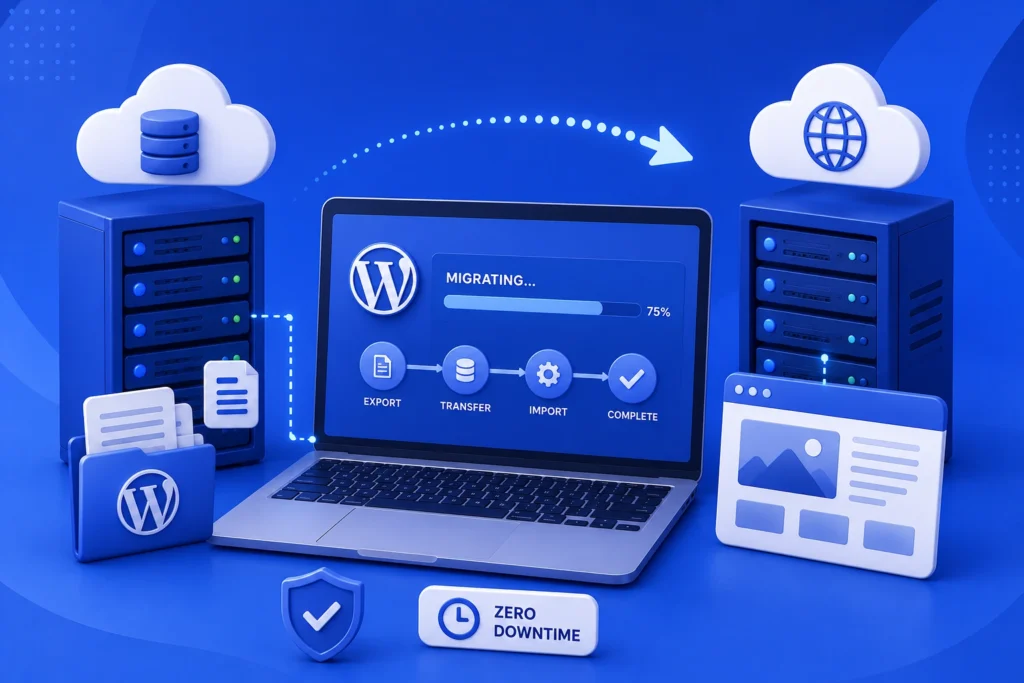
Prepare the destination before switching anything over. Set up the new hosting or server, and copy your files and database across.
At this stage, your live site is still running untouched. You are building a working copy in the new location, ready to be tested before anyone is sent to it.
Step 3: Test Everything Before Going Live
This is the step that prevents downtime and nasty surprises. Before pointing visitors to the new site, test it thoroughly in its new home.
- Check that all pages load and display correctly
- Test forms, search, and any interactive features
- On a store, complete a full test checkout
- Confirm images and media are all present
- Check the site on both desktop and mobile
The secret to a zero-downtime migration is simple: get the new site fully working and tested before you switch a single visitor over to it.
Only once you are confident everything works should you proceed to the final switch.
Step 4: Switch Over Smoothly
With the new site tested and ready, you can direct traffic to it. Because the destination is already working, visitors move seamlessly from the old site to the new one.
To avoid any gap, keep the old site in place until the switch has fully propagated and you have confirmed the new site is serving everyone correctly. Only then retire the old environment.
Step 5: Verify After the Move
The job is not finished the moment the switch happens. Check the live site again to confirm everything is working in its new home.
Look out for broken links, missing images, or any settings that did not carry over. Catching and fixing these promptly ensures visitors get a flawless experience. Our guide on broken links and 404 errors can help here.
Common WordPress Migration Mistakes to Avoid
Most migration disasters come down to a handful of avoidable mistakes. Knowing them in advance is the best way to sidestep them.
The most common is skipping the backup. Starting a migration without a complete, working backup means that if anything goes wrong, there is no safe way back. This single step turns potential catastrophes into minor setbacks.
Another is switching traffic to the new site before testing it properly. If you point visitors to a site you have not fully checked, they become your testers, and any problems play out in public. Thorough testing beforehand keeps issues private.
Forgetting about redirects is a third. When URLs change during a move, missing redirects create broken links and can harm your SEO. Finally, retiring the old site too soon, before the switch has fully settled, can leave some visitors stranded. Patience at each stage is what makes a migration feel seamless.
Frequently Asked Questions
Will my site go down during migration?
It does not have to. By building and testing the new site before switching traffic to it, you can migrate with no downtime for your visitors.
Will I lose data when migrating WordPress?
Not if you back up first and migrate carefully. A complete backup ensures that even if something goes wrong, no data is lost.
Does migrating affect my SEO?
A well-handled migration preserves your SEO. Keeping URLs consistent, setting up any necessary redirects, and testing thoroughly prevents ranking issues.
How long does a WordPress migration take?
It varies with the size and complexity of the site, but careful testing is always worth the time. Rushing the process is where problems usually occur.
For further reading, the official WordPress guide to moving your site offers helpful, authoritative guidance.
Move With Confidence
A WordPress migration does not have to be stressful or risky. With preparation, thorough testing, and a smooth switch-over, you can move your site with no downtime and no data loss.
BlueBotts handles WordPress migrations carefully and safely, so your site moves without a hitch. Request a free site audit or get in touch to plan your migration.
Get a free audit covering security, updates, backups, and performance gaps. Takes 60 seconds to request and costs nothing.