If you would rather have this handled for you, our WordPress security service takes care of this end to end. Discovering that your WordPress site has been infected with malware is stressful, but panicking makes it worse. With a calm, methodical approach, most infections can be cleaned and the site restored safely. This guide walks you through WordPress malware removal step by step, in plain language.
We will cover how to confirm an infection, how to clean it properly, and, just as importantly, how to stop it from coming back. If your site is actively causing harm to visitors, act quickly but carefully.
How to Tell If Your WordPress Site Has Malware
Malware does not always announce itself. Sometimes the signs are obvious, and sometimes an infection runs quietly for weeks while it does damage.
Watch for these common warning signs:
- Unexpected redirects sending visitors to spammy or unknown sites
- Strange pop-ups, ads, or content you did not add
- A sudden, unexplained drop in search traffic
- Warnings from Google or your browser that the site may be unsafe
- New admin accounts or files you do not recognize
- Your host suspending the account for malicious activity
If you notice any of these, treat it as urgent. The longer malware stays active, the more it harms your visitors and your search rankings.
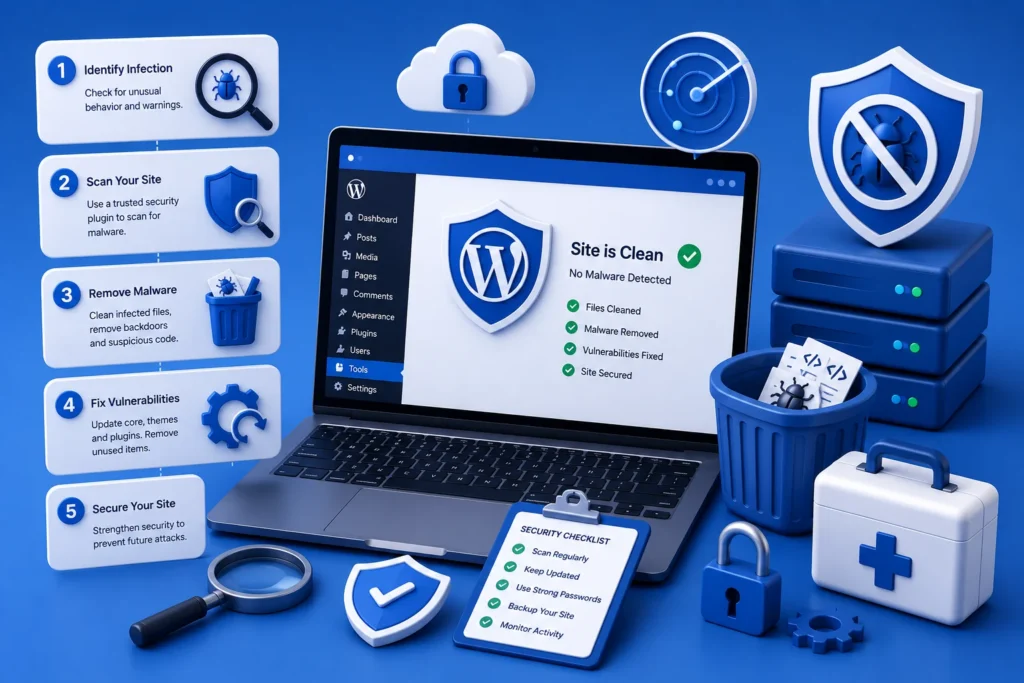
Step 1: Contain the Problem
Before cleaning, limit the damage. Put the site into maintenance mode if you can, so visitors are not exposed to the infection.
Change every password immediately: WordPress admin accounts, hosting, FTP, and the database. If the attacker has valid credentials, cleaning the files alone will not lock them out.
Step 2: Back Up the Current State
Even though the site is infected, take a full backup of the files and database first. This gives you a reference point and a safety net if something goes wrong during cleanup.
Label this backup clearly as infected so you never accidentally restore it later. A clean backup from before the infection, if you have one, is often the fastest path to recovery.
Step 3: Scan and Identify the Infection
Run a reputable malware scanner to locate infected files and suspicious code. Scanners compare your files against known-good versions and flag anything unusual.
Pay close attention to recently modified files, unfamiliar files in the uploads folder, and injected code at the top of PHP files. These are classic hiding spots for malware.
Step 4: Clean or Restore
You now have two main options. If you have a clean, recent backup, restoring it is often the safest and fastest choice.
If you do not, you will need to clean manually: replace WordPress core files with fresh copies, reinstall plugins and themes from official sources, and carefully remove injected code. This is delicate work, and one missed file can reinfect the whole site.
If you are unsure whether a file is malicious, do not guess. A single overlooked backdoor lets the attacker straight back in.
Step 5: Harden the Site So It Does Not Happen Again
Cleaning the infection is only half the job. If you do not fix the weakness that let malware in, you will be cleaning again soon.
- Update WordPress core, all plugins, and your theme to the latest versions
- Remove any plugins or themes you no longer use
- Enforce strong passwords and enable two-factor authentication
- Install a web application firewall to filter malicious traffic
- Set up regular scans and off-site, encrypted backups
For a deeper walkthrough of locking things down, see our guide on WordPress security hardening. If the attack is very recent, our article on what to do if your site is hacked covers the first critical hours.
When to Call in a WordPress Malware Removal Professional
Some infections are stubborn, deeply hidden, or keep returning despite your best efforts. If your site handles payments or customer data, the stakes are too high to gamble with.
A professional cleanup service can remove even well-hidden malware, confirm the site is fully clean, and harden it against future attacks. It is often faster and far less stressful than fighting a persistent infection alone.
How Long Does Malware Removal Take?
The time it takes to clean an infected site depends on how deep the infection goes. A minor, recently caught infection with a clean backup available can often be resolved in under an hour.
More stubborn cases take longer. Infections that have spread across many files, created backdoors, or gone unnoticed for weeks require careful, thorough cleaning to make sure nothing is missed. Rushing this stage is how sites get reinfected days later.
The bigger time cost is often the aftermath. Once the site is clean, you may need to request a review from Google if the site was flagged, restore lost rankings, and rebuild visitor trust. This is exactly why prevention is so much cheaper than cure. A little ongoing maintenance avoids days of disruption and recovery.
Frequently Asked Questions
How did my WordPress site get infected?
Most infections come through outdated plugins or themes, weak passwords, or pirated software. Attackers scan automatically for these weaknesses and exploit them at scale.
Can I remove WordPress malware myself?
Sometimes, yes, especially with a clean backup to restore. But manual cleaning is delicate, and missing a single backdoor lets the infection return, so professional help is often worthwhile.
Will malware hurt my Google rankings?
Yes. Google may flag or de-index an infected site, causing a sharp drop in traffic. Fast cleanup and reinclusion requests help you recover.
How do I stop my site being reinfected?
Fix the underlying weakness: update everything, use strong passwords and 2FA, add a firewall, and keep tested backups. Ongoing monitoring catches new threats early.
For further reading, the official WordPress hardening documentation offers helpful, authoritative guidance.
Get Your Site Clean and Keep It That Way
Malware is serious, but with the right steps most sites can be cleaned and protected for the future. The key is to act quickly, clean thoroughly, and harden properly.
If you would rather have experts handle it, BlueBotts offers professional malware removal and ongoing protection. Request a free site audit to check your site’s health, or contact our team for urgent help.
Get a free audit covering security, updates, backups, and performance gaps. Takes 60 seconds to request and costs nothing.