If you would rather have this handled for you, our speed optimization service takes care of this end to end. If your WordPress site feels slow, caching is often the single most effective fix. It can turn a sluggish site into a fast one, sometimes dramatically, without changing a word of your content. Yet many site owners are not quite sure what caching actually does.
This beginner-friendly guide explains WordPress caching in plain language: what it is, the main types, how it speeds up your site, and how to use it without breaking things.
What Is Caching?
Every time someone visits a WordPress page, the server normally has to build that page from scratch. It runs code, queries the database, and assembles the result before sending it to the visitor. That work takes time.
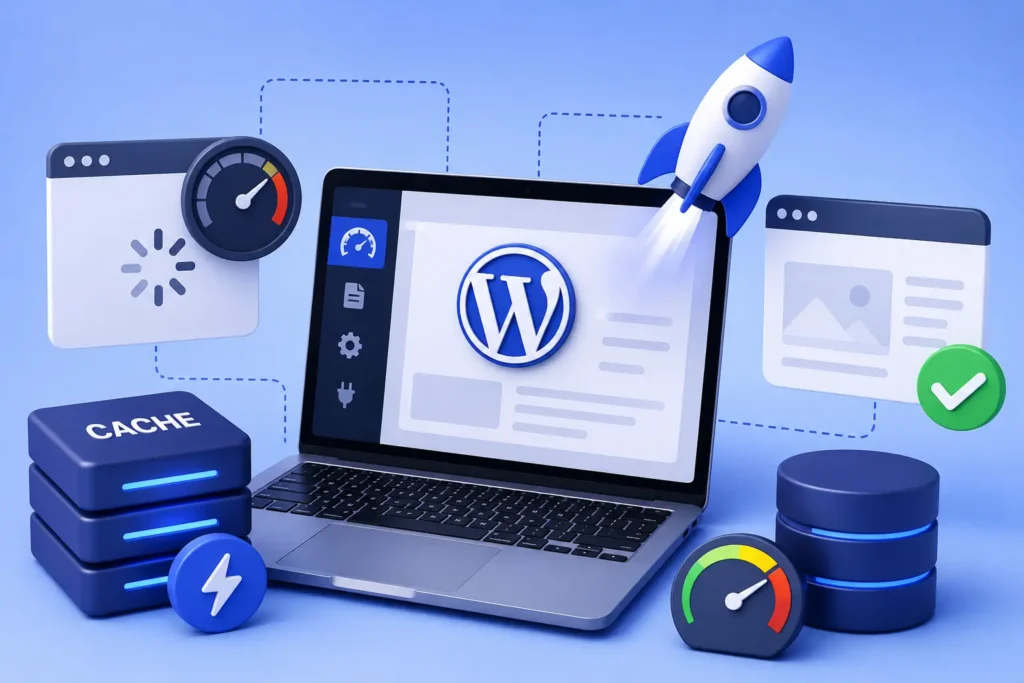
Caching saves a ready-made copy of the page after it is built the first time. The next visitor gets that saved copy instantly, without the server having to do all the work again.
In short, caching is like preparing a meal in advance instead of cooking it fresh for every single guest. It is far faster to serve.
Why Caching Makes Such a Big Difference
The speed gain from caching can be substantial, because it skips the most time-consuming steps of loading a page.
Faster pages keep visitors happy, reduce bounce rates, and improve conversions. Since speed is a search ranking factor, caching also supports your SEO. Our guide on how to speed up WordPress puts caching in the wider performance context.
Caching also eases the load on your server, helping your site stay stable during traffic spikes when it would otherwise struggle.
The Main Types of WordPress Caching
Caching happens at several levels, and they work together for the best results. Understanding the main types helps you see the full picture.
- Page caching: stores the full HTML of a page so it can be served instantly
- Browser caching: lets a returning visitor’s browser reuse files it already downloaded
- Object caching: stores the results of database queries to avoid repeating them
- Server and CDN caching: caches content close to the visitor for faster delivery
You do not need to master each one individually. What matters is knowing that a good caching setup uses several layers together.
How to Use Caching Without Problems
Caching is powerful, but it occasionally causes confusion when a cached copy is out of date. Knowing how to handle this keeps things smooth.
The most common issue is seeing an old version of a page after you have made a change. This happens because the cache is still serving the previous copy. Clearing, or purging, the cache resolves it instantly.
If a change you made is not showing up, the cache is usually the reason. Purging the cache almost always fixes it.
For dynamic areas like shopping carts or logged-in dashboards, caching needs to be configured carefully so visitors always see the correct, personal content. A good setup handles this automatically.
Caching Is Part of Good Maintenance
A caching setup is not entirely set-and-forget. As your site changes, the cache occasionally needs clearing, and the configuration may need adjusting.
Keeping caching properly configured, and purging it when you make significant changes, ensures visitors always get a fast and correct experience. It is a small but important part of ongoing site care.
When Caching Needs a Human Touch
For most of the time, caching runs quietly in the background and simply makes your site faster. But there are moments when it needs a little attention to avoid confusion.
The most common is right after you make changes. If you update a page and still see the old version, the cache is serving its saved copy. Purging the cache refreshes it instantly, and knowing this saves a lot of needless worry.
Dynamic areas also need care. Pages like shopping carts, checkouts, and logged-in dashboards must always show current, personal information, so they should not be cached in the same way as a static page. A good caching configuration handles this automatically, but a careless one can cause odd behavior.
This is why caching, though powerful, is not entirely hands-off. Setting it up correctly and clearing it at the right moments ensures every visitor gets a fast page that also shows the right, up-to-date content.
Frequently Asked Questions
What does caching do for my website?
It saves ready-made copies of your pages so they load almost instantly, instead of being rebuilt for every visitor. This makes your site significantly faster.
Why are my changes not showing up after I edit a page?
The cache is likely still serving the old version. Clearing or purging the cache will display your latest changes right away.
Do I need caching if my site is small?
Yes. Even small sites load faster and handle traffic better with caching. The benefits apply to sites of every size.
Can caching break my site?
Poorly configured caching can show outdated content or interfere with dynamic areas like carts. A correct setup avoids this, and purging the cache resolves most issues.
For further reading, Google’s web.dev performance guidance offers helpful, authoritative guidance.
Speed Up Your Site the Easy Way
Caching is one of the simplest and most effective ways to make WordPress fast. By serving ready-made pages, it delivers a quicker, smoother experience for every visitor.
BlueBotts configures and manages caching as part of our maintenance plans, so your site stays fast and correct. Request a free site audit or view our plans to get a faster site.
Get a free audit covering security, updates, backups, and performance gaps. Takes 60 seconds to request and costs nothing.