If you would rather have this handled for you, our WordPress speed optimization service takes care of this end to end. WordPress performance has a plugin graveyard: dozens of caching, optimization, and minification plugins that promised PageSpeed 100 and delivered a broken site. The reason most of them underperform is that they optimize the wrong things. They compress images that were already compressed, minify JavaScript that was already minimal, and enable settings that conflict with your theme’s rendering logic.
Before you reach for another plugin, it helps to understand what Google actually measures and how to speed up WordPress at the level that matters. This guide walks through the Core Web Vitals, the server-side wins, and the ongoing habits that keep your site fast.
What Google Actually Measures
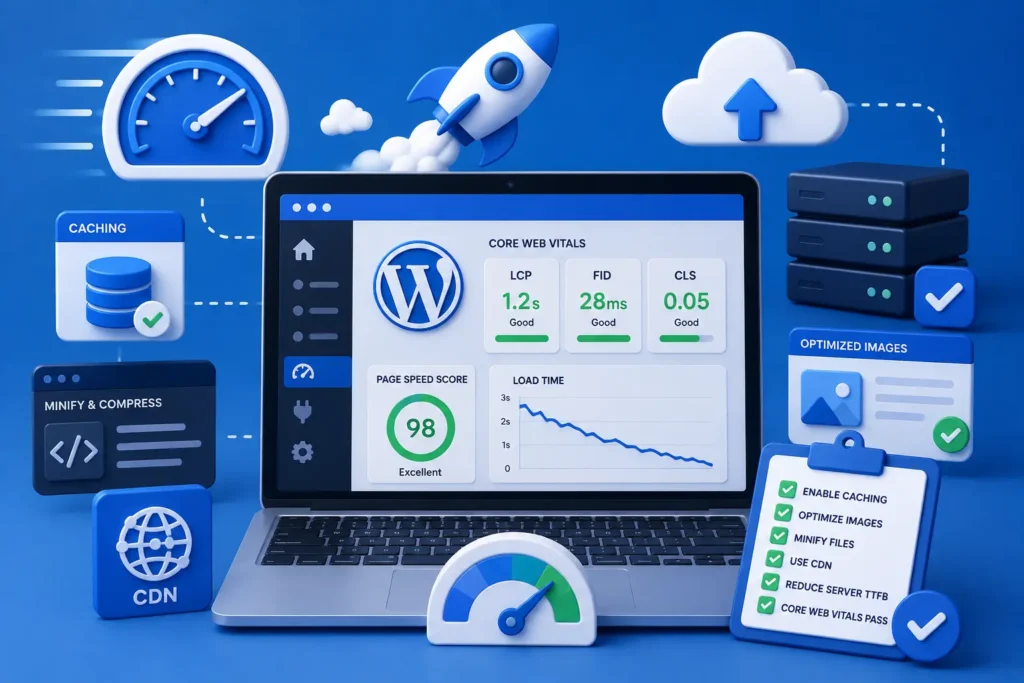
Google’s Core Web Vitals are three real-world metrics that reflect how your site feels to a visitor. Improving them improves both user experience and your search rankings.
Rather than chasing a single score, focus on these three signals. Each one points to a specific, fixable class of problem.
Largest Contentful Paint (LCP)
LCP is how long it takes for the biggest visible element on your page to render, usually a hero image or H1. It is the clearest measure of how fast your page feels to load.
The single highest-impact improvement for LCP on most WordPress sites is adding a preload hint for the hero image. Combined with converting images to modern formats like WebP and serving them via a CDN, LCP improvements of 40 to 60% are routine.
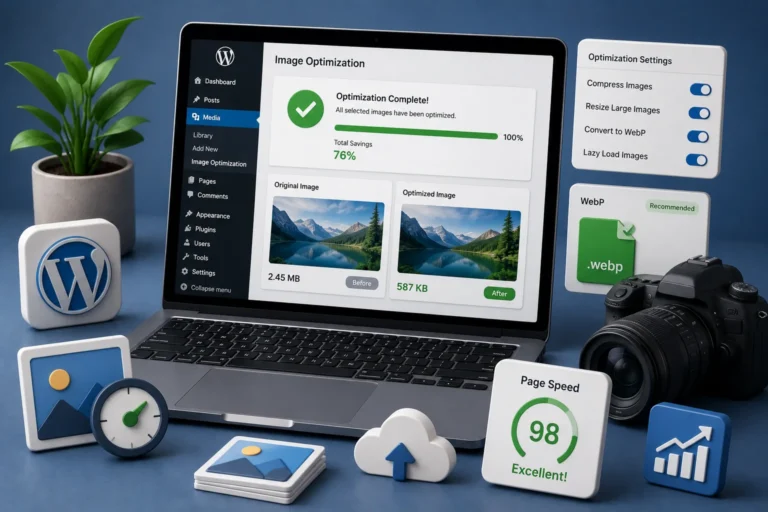
Our guide on WordPress image optimization covers the image side of this in detail.
Cumulative Layout Shift (CLS)
CLS measures visual stability, or how much the page jumps around as it loads. Nothing feels cheaper than a page whose buttons move just as you go to tap them.
The most common causes on WordPress are images without explicit width and height attributes, web fonts that swap in late and cause text to reflow, and ads or embeds injected after the initial render. Fix these at the theme level, not with a plugin.
Interaction to Next Paint (INP)
INP measures how quickly the browser responds to user interactions such as clicks, taps, and key presses. A page can look loaded but still feel sluggish when you try to use it.
Heavy JavaScript, large event listeners, and render-blocking third-party scripts are the main culprits. Defer everything non-critical, audit your plugin JavaScript, and consider replacing JavaScript-heavy plugins such as sliders, popups, and chat widgets with lighter alternatives.
The Server-Side Wins
Front-end tuning only goes so far if the server is slow to respond. Several server-level improvements raise your whole performance ceiling.
- Enable PHP OPcache so your code does not recompile on every request
- Use a full-page caching layer suited to your stack, as explained in our guide to caching
- Enable HTTP/2 or HTTP/3 at the server or CDN level
- Keep your PHP version current, since newer versions are significantly faster
If your host does not support these, your speed ceiling is lower than it should be. Sometimes switching to better hosting is the single highest-impact performance improvement available, as we discuss in our comparison of managed versus shared hosting.
Why Speed Is Never “Done”
A site that is fast today can slow down over time as content, images, and plugins accumulate. Performance is not a one-time project but an ongoing discipline.
Measuring your speed regularly, on both desktop and mobile, lets you catch regressions early before they cost you visitors and rankings. Site speed also directly affects your revenue, as covered in our article on website speed and conversions.
Frequently Asked Questions
What is the fastest way to speed up WordPress?
For most sites, enabling full-page caching and optimizing images give the biggest gains for the least effort. From there, address your Core Web Vitals and server configuration.
Do I need a speed plugin?
A good caching plugin helps, but plugins cannot fix everything. Many speed problems live in the theme, the images, and the hosting, which need addressing directly rather than with another plugin.
Does site speed affect SEO?
Yes. Core Web Vitals are a Google ranking signal, and faster sites also keep visitors engaged, which supports rankings and conversions alike.
Why is my WordPress site still slow after installing a caching plugin?
Caching only addresses part of the picture. Large unoptimized images, heavy JavaScript, slow hosting, or a bloated database can all keep a cached site slow until they are fixed.
Get a Genuinely Fast Site
Speeding up WordPress is less about stacking plugins and more about fixing the right things: your Core Web Vitals, your images, your server, and your ongoing maintenance. Done well, the difference is dramatic.
For further reading, Google’s Core Web Vitals documentation offers helpful, authoritative guidance.
BlueBotts includes performance optimization and monitoring in every maintenance plan, so your site stays fast as it grows. Request a free site audit or view our plans to speed things up.
Get a free audit covering security, updates, backups, and performance gaps. Takes 60 seconds to request and costs nothing.